NetworkManager の L2TP プラグインを使う。
sudo apt update
sudo apt install -y network-manager-l2tp network-manager-l2tp-gnomeNetworkManager の L2TP プラグインを使う。
sudo apt update
sudo apt install -y network-manager-l2tp network-manager-l2tp-gnome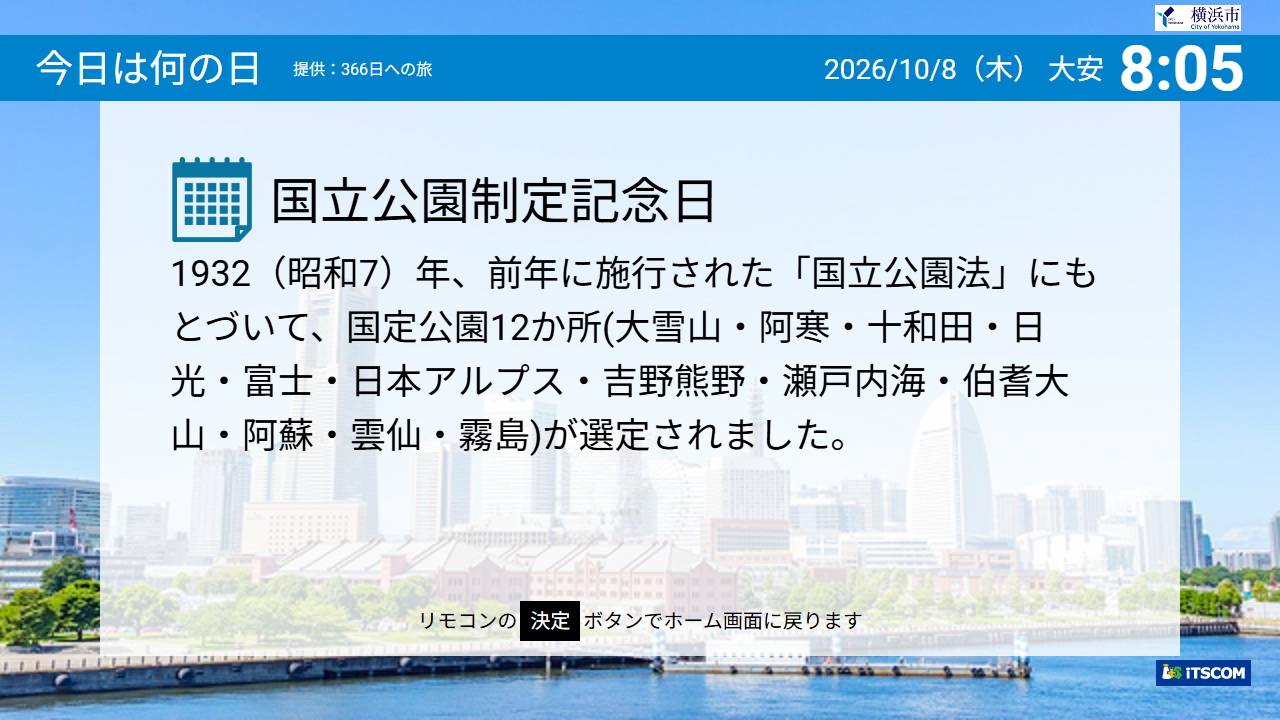
今日は国立公園制定記念日ですね。北海道の国立公園には以下のものがあります。
道東が多いですな。利尻礼文サロベツは道北。支笏洞爺は道央。大雪山は道央なんだか道北なんだか道東なんだかよくわからない。そして、知床、阿寒摩周、釧路湿原が道東。
日高山脈襟裳十勝国立公園ってのは、さっき知ったんだけど 2024 年に日高山脈襟裳国定公園から日高山脈襟裳十勝国立公園になったんだね。十勝(道東)部分拡張か。しかし襟裳が道央ってのは昔から納得しかねるんだが、道東でもないような気もするから仕方ないのか。
本当に子供の頃に利尻礼文だったと思うんだけど、国定公園から国立公園になった。釧路湿原はタンチョウがいるところ(イトウもいる)が国立公園になった。
子供の頃、支笏湖あたりって国定公園だった記憶があるけど、調べてみると違うらしい。昭和 24 年に国立公園に指定されたみたい。
国立公園と国定公園はなにが違うかっていうと、国立公園は国が管理しているけど、国定公園は都道府県が管理する。英語で国立公園は National Park で、国定公園は Quasi-National Park なんだそうな。
昔、quasi と pseudo って何が違うのか疑問に思ったことがあって、その時には、
quasi は「何かにかなり近い」と近いところが重要で、pseudo は「似てるけど別物」と別なところが重要
と理解していた。pseudo device は物理デバイスではないがデバイスのように振る舞う。quasi device はデバイスに準ずるもの(ほぼデバイス)。
最近、カニカマで「ほぼカニ」ってのがあるけど、
みたいに認識してしまう。これは間違っていると思う(カニカマは imitation crab だと思う)。
「今日は時オカの発売日だ!」と思っていたら、それは来月の話だった。
就職してしばらくまでは結構ゲームをやることが多かった。PC でやることもあったけど、だいたいは家庭用ゲーム機。ジャンルは RPG がメインだったけど、レース系のゲームもやってたし、格闘系もやっていた。
記憶に残っているのは Chrono Trigger で、面白いのだが仕事とはやはり両立しないなと思っていた。Chrono Trigger を終えてからアメリカに出張に行った。ポートランドで現地のエンジニアに「DOOM やろうぜ!」と誘われて練習させられ、そのあとサンタ・バーバラの会社のエンジニアとやったときに「もっと練習が必要だな…」と言われた。
そのあたりから、ゲームをあまりやらなくなった。携帯のゲームとかも出てきていたけど、ほぼ触れずに時は流れた。
ある日、時間つぶしのゲーセンで見つけたミスタードリラー。絵柄が好きで、プレステ版を買ってしまった。そうなると、高校生の頃にディグダグにハマったので「こいつ、ディグダグだと思っていたが、ホリ・タイゾウって名前なのか!」とか濃ゆく遊び始めた。しかし、プレステ(その頃使っていたのは PS2 だったと思うが)で他のゲームをすることはほとんどなかった。
ある日、YouTube でよゐこが MINECRAFT をやっているのを見て Switch と MINECRAFT を買った。最初に発売された頃(多分)にちょっと遊んだが面白さが分からなかった。しかし、これもハマって PS5 版も買ったりしていまだにやっている。よゐこにはまり、ドズぼん(今のドズル社)にもはまり、かーぼんにはまり、YouTube にも詳しくなった。沼ったと言ってよいのではなかろうか。
その後、人に勧められて『ゼルダの伝説 ティアーズ オブ ザ キングダム』をやってみたら、これがハマった。ゲームとしてすごく面白く、映画を観ているような楽しさもある。終わったら速攻で『ゼルダの伝説 ブレス オブ ザ ワイルド』も購入。なぜ、いままでゼルダをやらなかったのか後悔レベルだった。最近もちょっと立ち上げてハイラルを歩きまわったりしている。Switch 2 版が出た時はこれだけ遊んだゲームも少ないし、カートリッジをいれるのが面倒ってことで Switch 2 版を買い直した。
本当にゲームは楽しい。
先日、大学の先輩たちと会ったとき、みんなそこまで太っていないことに驚いた。自分はというと、いいだけ太ってしまっている。
嫁が「旦那、太り過ぎじゃね?」と言われたらしく、スポーツクラブについての提案を出してきた。これは本気で考えたほうが良いと思っている。
PC の調子が悪い。Windows が動いている、いわゆるミニ PC なんだけど、グラフィックドライバが止まるような状態になる。一日に数回起きる。
仕事道具なんで早めになんとかしたい。
日頃から調子を見ておくのは大事なことだとわかっていても、なかなか難しい。こういうものはどんどん出てくる。
以前はキレ気味に「なぜできないんだ!」と考えていたが、最近は「そううまく行かないよね」と冷静に考えられるようになってきた。
Route 53 を使い始めるにあたって。
実際は、ムームードメインで取得したドメイン、heteml のレンタルサーバで運用している(ネームサーバはムームー DNS)が、ネームサーバを AWS Route 53 にしたい、という話。最終的にはメールサーバも Web サーバも別なところに持っていって heteml の使用量を減らす感じ。こちらの話はまた別に。
ムームー DNS の権威サーバで、
sampledomain.com.      3600  IN A  <IP address #1>
www.sampledomain.com.  3600  IN A  <IP address #1>
を確認した。AAAA レコードは存在せず。
MX レコードは、
sampledomain.com. 3600 IN MX 50 <heteml mail server>になっている。
SPF / DMARC については、未設定の状態だった。コントロールパネルで設定したところ、SPF / DMARC 用の TXT レコードが追加された。
sampledomain.com.  TXT "v=spf1 include:_spf.heteml.jp ~all"
_dmarc.sampledomain.com.  TXT "v=DMARC1; p=none;"
が設定された。これは外部ネームサーバを使用するときに設定しろと heteml のドキュメントにあったもの。
dig @<.jp の権威サーバ> sampledomain.com DS を実行すると、NOERROR ANSWER: 0 で DS レコードは存在しないことが分かった。
Route 53 に登録するレコードは以下の 5 つ。
IP address #1 については、サーバによってはメンテナンスに関連して、外部ネームサーバを使っている場合はこのアドレスを指定みたいに書かれているものがあるんだけれど、自サーバでは無かった。www.sampledomain.com を dig コマンドで数回確認したが、同一の返答のみだったため、ラウンドロビン等はしていないだろうということで dig コマンドで出てきたものを使っている。
heteml mail server に関しては、dig で MX を確認したものを使っている。複数の MX が無いというのは前面にリバースプロキシを配置しているのかと思っている。
残りの TXT レコード 2 つは、SPF 等に対応する旨のドキュメント中で、外部ネームサーバを使っている場合はこれを使えと書かれているもの。
また、メール送信してのテストでは、
DKIM-Signature:
    d=dkim.hetemail.jp
s=20240109となっていて、20240109._domainkey.dkim.hetemail.jp で管理されている。heteml のサーバで送信するときに dkim.hetemail.jp ドメインで DKIM 署名しているようだ。
この設定に変更したあと、Gmail への送信テストも無事成功。しばらくしたら、諸々の処理ができると思う。
AWS の SES でのメール受信について。まず、SES がメールを受信して S3 に保存するまでをやっつける。
Amazon SES で以下のドメイン宛メールをすべて受信し、raw MIME のまま S3 へ保存する。
sampledomain.comsub.sampledomain.com保存先は共通の S3 バケットとし、ドメインごとに prefix を分離する。
s3://mail-in-bucket/
├── sampledomain/
│   └── raw/
└── sub-sampledomain/
└── raw/リージョン ap-northeast-1 に以下の Identity を作成するが、先にドメインの MX レコードを変更しておく。今回 Route 53 で行っているが、BIND のゾーンファイルなら以下のような感じになるはず。
@    300    IN    MX    10 inbound-smtp.ap-northeast-1.amazonaws.com.
sub    300    IN    MX    10 inbound-smtp.ap-northeast-1.amazonaws.com.
mail-in-bucket バケットも以下のような設定で作成しておく。
前に挙げた sampledomain.com と sub.sampledomain.com の ID を作成する。
ID の作成画面で ID タイプでドメインを選択すると、以下の内容を入力できる。
ドメインの検証は Easy DKIM で行った。
しばらくすると ID ステータスが検証済みになるはず。
Receipt Rule Setとして mail-in を作成し、Active に設定した。
S3 Action も設定する。
S3 Action も設定する。
SES から S3 に書き込むためのロール mail-in-bucket-ses-role を作成した。
インラインポリシー mail-in-bucket-s3-put を作成。s3:PutObject を許可した。
対象リソースは以下の 2 つ。
SES によるメール保存には不要なため、s3:GetObject や s3:DeleteObject、s3:ListBucket は設定していない。
Principal は ses.amazonaws.com で、許可するアクションは sts:AssumeRole で、AWS:SourceAccount は自分のアカウント ID。AWS:SourceArn は arn:aws:ses:ap-northeast-1:<アカウントID>:receipt-rule-set/mail-in:receipt-rule/sampledomain と arn:aws:ses:ap-northeast-1:<アカウントID>:receipt-rule-set/mail-in:receipt-rule/sub-sampledomain に。* でまるっと括らずつくった 2 つのルールセットを指定している。
これで外部からメールを送信して、S3 にオブジェクトができていることを確認する。
SES で受信したメールには Delivered-To ヘッダが付加されていない。しかし、SES 受信時のイベントには envelope recipient が含まれている。
通常 foo@sampledomain.com と bar@sampledomain.com 宛のメールというのは、それぞれのメールボックスに配送される。受信時に RCPT TO が foo@sampledomain.com と bar@sampledomain.com の 2 回あったときに S3 に保存されるメールとしてはいくつになるのかがまだ不明。
ちょっと調べてみた。
| 名前 | 種類 | 川・水との関係 |
|---|---|---|
| 闇龗神(クラオカミ) | 水神・龍神 | 谷・水を司る |
| 高龗神(タカオカミ) | 水神・龍神 | 山・水源・降雨を司る |
| 罔象女神(ミヅハノメ) | 水神 | 水全般を司る |
| 九頭龍(クズリュウ) | 龍神 | 湖・水域 |
| 蛟(ミヅチ) | 水の怪異・龍蛇 | 川・淵に棲む |
| 河童(カッパ) | 妖怪・水辺の存在 | 川・淵に棲む |
川に関係ある生物?
| 名前 | 種類 | 川との関係 |
|---|---|---|
| カワセミ(Kawasemi / Kingfisher) | 鳥 | 川辺から水面を見て魚を捕る |
| カワウソ(Kawauso / Otter) | 哺乳類 | 河川・水辺で生活 |
| カジカ(Kajika) | 魚 | 日本の河川、特に清流 |
| アユ(Ayu) | 魚 | 日本を代表する川魚 |
| ヤマメ(Yamame) | 魚 | 渓流・上流域 |
| イワナ(Iwana) | 魚 | 渓流・源流域 |
| ナマズ(Namazu) | 魚+伝承 | 川・湖など |
| サワガニ(Sawagani) | 甲殻類 | 沢・小河川 |
| ホタル(Hotaru) | 昆虫 | 幼虫が水辺・河川環境に依存 |